Running out of inventory space in the mines? OTG Backpack is a free Bedrock add-on that lets you expand the storage you carry. Here’s how to craft, open and upgrade a bag, with module tips and notes from playing on iPhone 17 Pro and PS5.
Start small and work up through copper, iron, gold, diamond and netherite. Add new tools as you need them.
This guide covers OTG Backpack v1.0.8, using the Native Display build for Bedrock Reimagined. We checked the controls and values against the included guide and pack files, and played on iPhone 17 Pro and PS5. Our field notes below describe how the bag felt to use while exploring and managing supplies.
On this page Show or hide contents
- What it was like to play
- What OTG Backpack can do
- Check your edition and packs
- How to craft your first backpack
- Open the backpack on mobile and set a carry slot
- Upgrade tiers and storage capacity
- Choose a module by what it does
- Overpack and Stockpile
- Crafting, smelting, liquids and the campfire
- Compare backpack designs and features
- Place a backpack or change its appearance
- Storage restrictions and troubleshooting
- A simple way to get started
- Read the in-game guide in Japanese
- Original download and sources
- Related guides
Field notes
How the backpack felt to use
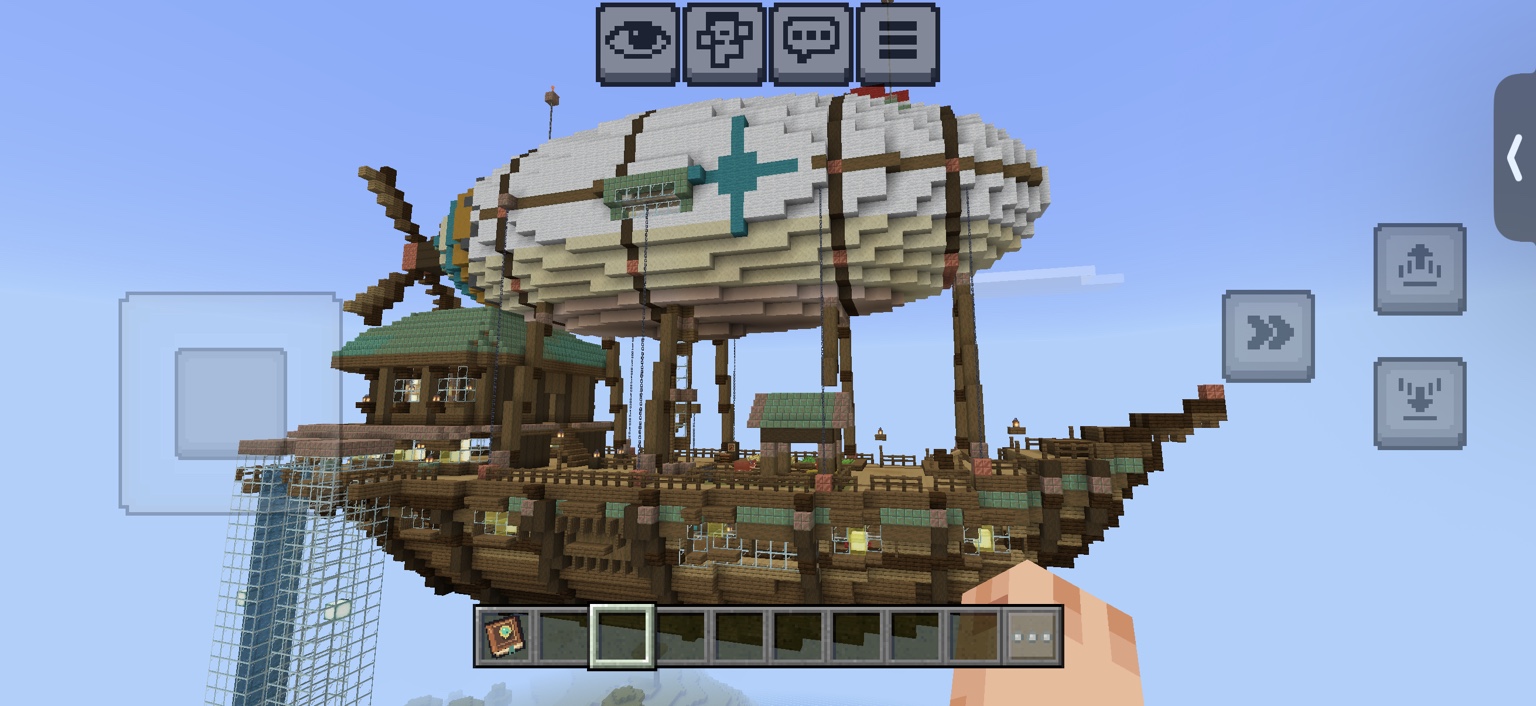
I could explore longer between trips home
I used to head home as soon as my inventory filled up. With a backpack, I could follow a cave or keep exploring a new area until I felt like coming back.
Take your favorite music with you
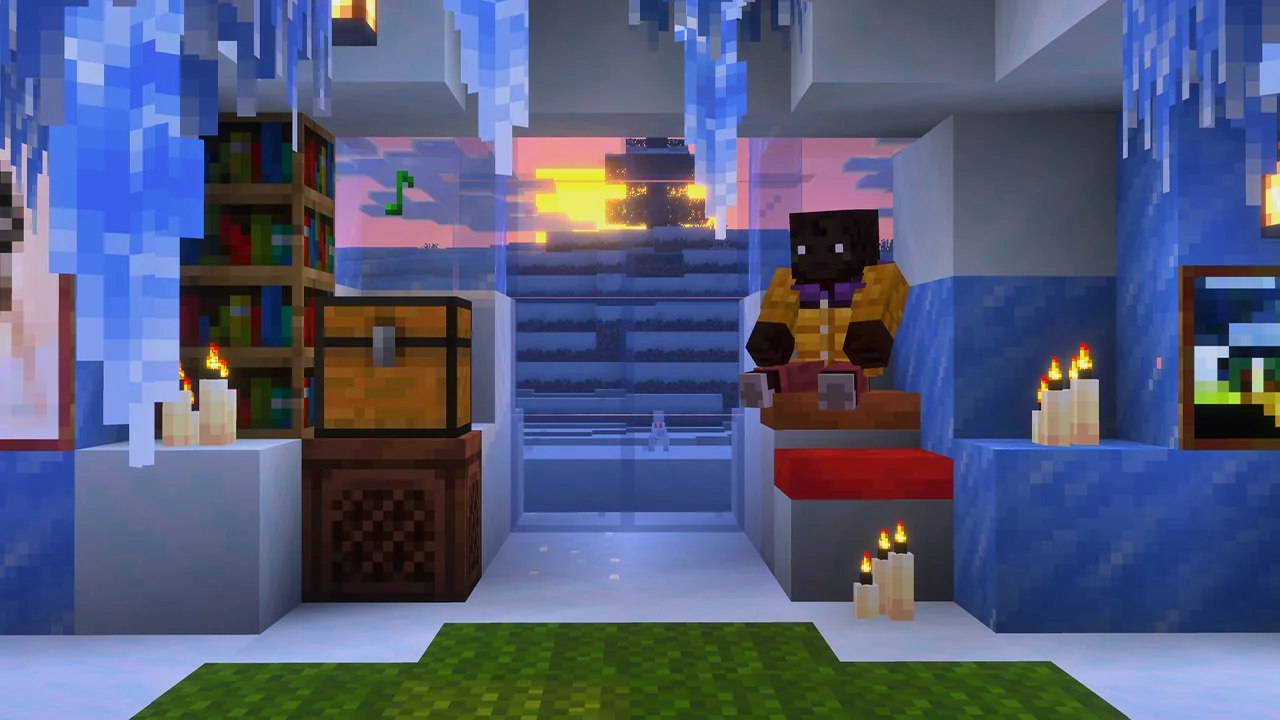
One of my favorite features is the record player. Listening to a favorite disc on the move made even a familiar trip feel like an adventure.
Try it in your own world
More supplies and a soundtrack for longer trips
In our playthrough
The biggest change was making fewer trips home just to empty my inventory. I could keep exploring as long as I wanted, often with one of my favorite music discs playing.
Something to try
It’s easy to focus on slot counts and overlook the record player. Take the bag along on one of your usual supply runs. If you’d like to bring music too, check which equipment you need below.
What OTG Backpack can do
- Expand your storage. Start with 15 slots and work up to 126 at netherite tier.
- Craft on the road. Successive tiers unlock a crafting table, furnace, stonecutter, anvil and more.
- Carry water and lava. Liquid tanks unlock at copper tier.
- Add modules. Collect drops, light your path, eat automatically, breathe underwater or mine faster.
- Change the look. Equip a cosmetic shell in its own slot.


Check your edition and packs
Download the pack from the creator’s CurseForge page. The files include Native Display, Offhand Display and builds for Bedrock Reimagined. Check which edition you need before downloading.
- Make a copy of any world you want to keep.
- Download the official file on your phone and open it in Minecraft to import it.
- In your world settings, activate both the behavior pack (BP) and the resource pack (RP).
- If you use Bedrock Reimagined, place OTG’s resource pack above it.
- Enter the world and check the recipes for the backpack and its guidebook.
On PS5, start with our phone-to-PS5 Realms guide. This explains the installation route. We haven’t verified every OTG feature on PS5 or Realms. If you run into import or display problems, see our installation troubleshooting guide .
How to craft your first backpack
In this guide, “backpack” means the portable storage item from OTG Backpack. Start with the basic bag and guidebook, and get comfortable with them before upgrading.
To craft the basic backpack, use 4 leather, 3 iron ingots, 1 iron nugget and 1 chest. Arrange them as shown below.
Use 2 leather and 2 paper. The book explains the controls and opens the settings.
Look up recipes for upgrades and modules at a crafting table in your world. If they’re missing, check that both packs are active and that their versions match.
Open the backpack on mobile and set a carry slot
For your first try, hold the backpack in your main hand and press Use Item to open it. Touch controls vary with your control settings. Choose the action you use to interact with items rather than the one you use to attack or break blocks.
- Use the guidebook to open it.
- Select Backpack Settings (Personal).
- Choose “Change carry slot” and pick a convenient slot.
- Place the backpack in that slot.
- Sneak twice, then jump to try Quick Open.
Slot 27 is the last slot in your regular inventory. The carry system checks hotbar slot 9 first, then your personal carry slot, your offhand and finally your main hand. If you have several bags and the wrong one opens, try again with just one.
“Offhand Display” controls how the bag looks. Turning it off still allows Quick Open and module effects. The Native Display version we tested puts the bag directly on your back, so it can look different from the Offhand Display version.
Upgrade tiers and storage capacity
Calculate what you need to upgrade from your current tier
Open the backpack and put the next upgrade item into its tier upgrade slot. Storage and module slots are separate. You need to go through every tier, so you can’t jump straight from basic to diamond.
- Craft the next tier’s upgrade item at a crafting table.
- Open the backpack you want to upgrade.
- Put the upgrade item in the tier upgrade slot.
- Check the new name, capacity and built-in tools.
| Tier | Storage | Module slots | Capacity per liquid tank | Tools unlocked |
|---|---|---|---|---|
| Basic | 15 slots | 1 | None | Sorting and trash |
| Copper | 30 slots | 2 | 20 | Crafting table |
| Iron | 45 slots | 3 | 40 | Furnace |
| Gold | 60 slots | 4 | 60 | Stonecutter |
| Diamond | 90 slots | 5 | 80 | Anvil |
| Netherite | 126 slots | 7 | 100 | Enchanting setup, brewing stand, smithing table and ender chest |
Storage, module slots and tank capacities come from the v1.0.8 tier settings. Tank capacity is measured in buckets. Some tools can be disabled in the world settings.
Choose a module by what it does
Install modules in unlocked module slots. Try them one at a time to see which features suit your trips.
- Craft the module you want.
- Open the backpack and install it in an unlocked module slot.
- Add any food or filter settings the module needs.
- Put the bag in your carry slot and try the effect.


| Modules | What it does | How to use it |
|---|---|---|
| Magnet | Picks up nearby item drops | The bag needs free space. Filters and the contents of the bag also affect what it picks up. |
| Radiance | A floating companion lights nearby caves | The light may pause briefly when you teleport or use a portal. |
| Sustenance | Feeds you when you’re hungry | Put supported foods in the designated food slot. |
| Dive | Helps you breathe underwater | Each dive gets up to 120 seconds of assistance. |
| Speed, jump and strength modules | Improve movement or combat | Diamond tier and below grant level I effects. Netherite grants level II. |
| Excavation | Increases mining speed | Level I at diamond tier and below, level II at netherite. Spend XP to repair the module when its durability drops. |
| Forestry | Fells naturally grown trees in one go | Sneak while using an axe. Take care near buildings or farms. |
| Compressor | Compacts supported resources into blocks | Takes effect when you sort the bag. |
| Void | Automatically discards unwanted items | Specify items with its filter. Discarded items are permanently deleted, so keep valuables off the list. |
| Totem+ | Equips a totem in an emergency | At three hearts or fewer, the module attempts to move a totem from the bag into your offhand. |
| Soulbind | Helps you keep your backpack when you die | Each module provides three uses. |
| Hearts and Furnace | Improve survivability or smelting | Check which tier and setup each module requires before installing it. |
Overpack and Stockpile
Overpack
Overpack adds a second page of regular storage to a netherite backpack. Use the page buttons to move between pages one and two.
Stockpile
Stockpile also requires netherite. Select simple, stackable items using its filters. The bag stores each type as a count, and each row has its own withdrawal button.
Empty Stockpile before removing the module. The module locks in place while it holds items so you can’t detach it from its contents. It doesn’t support items with special data, such as potions.
Crafting, smelting, liquids and the campfire
Crafting table: use the built-in grid or place a table
If the built-in panel is enabled, open the 3 × 3 crafting grid with its button. It supports batch crafting. If a recipe isn’t available in the panel, use the placement button to put a regular crafting table nearby.
Furnace: fuel it with lava
Put smeltable items in the input and take finished items from the output. The furnace uses lava from the tank first, then lava buckets in storage. It returns the empty buckets. Leave the output slot free for finished items.
Liquid tanks: collect and withdraw water or lava
With automatic collection enabled, the bag transfers water or lava from filled buckets into the matching tank and returns the empty buckets. It collects from buckets, so nearby source blocks stay in place. Use the withdrawal control to fill a bucket again.
Campfire: change the time without moving your spawn point
Place the rest campfire on solid ground in the Overworld and choose morning, noon, night or midnight. In multiplayer, resting involves a group vote.
Netherite enchanting setup
The bag can place a temporary enchanting setup with bookshelves. On level, solid ground, allow a 5 × 6 footprint (6 × 5 if rotated) and four clear blocks overhead. You can’t collect the structure as building materials. Breaking part of it removes the whole setup without drops. Each player can have one setup. Placing another or moving at least 32 blocks away removes it.
Compare backpack designs and features
The backpack’s tier, from basic through netherite, determines its storage and equipment. A cosmetic shell such as the creeper design changes its appearance and can be chosen separately.
Compare all six tiers and cosmetic shells Backpack pictures, storage, tools and shell recipes→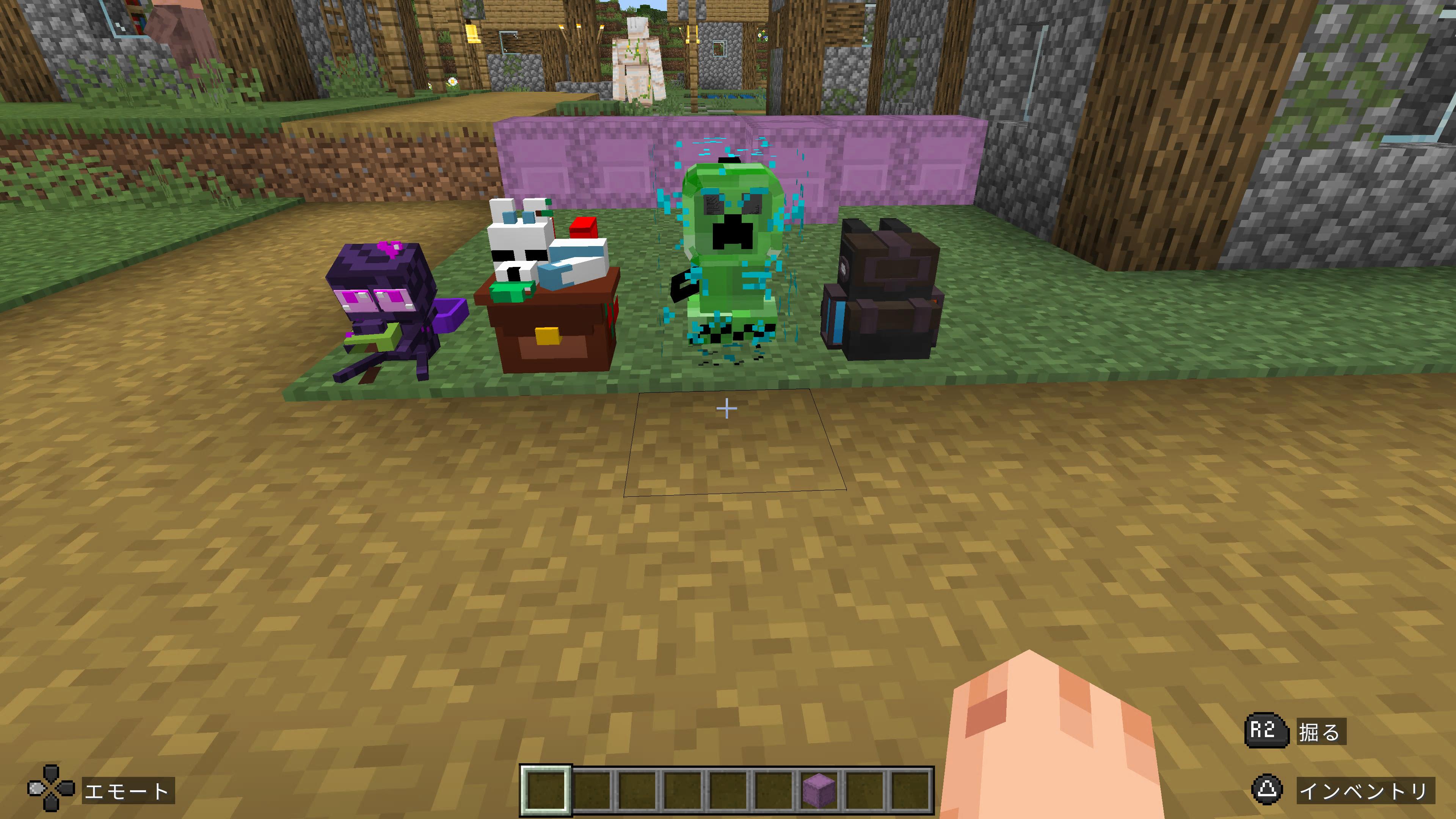
Place a backpack or change its appearance
Switch between carry mode and placement mode. In placement mode, use the bag on a clear block face. Interact with the top or center of a placed bag to open it, or break it to pick it back up. Choose a spot clear of blocks and liquids.
Put a cosmetic shell in the dedicated appearance slot. It has its own slot and leaves the bag’s tier and contents intact. If you can’t change the shell while the bag is placed, pick it up first. Availability varies by shell, and some may cost money.
Storage restrictions and troubleshooting
- The backpack won’t accept potions, tipped arrows, shulker boxes or bundles. Older release notes mention potion support. That entry doesn’t describe the version covered here.
- You can’t put one backpack inside another.
- Items deleted by Void cannot be recovered. Try your filter on an item you can afford to lose first.
- A tool or effect is missing. Check the tier, required modules and world settings, then check the versions of both packs and that both are active.
- Part of the interface is cut off. The included guide recommends Classic UI and a GUI Scale Modifier of −2. Try the available settings on your device. With Pocket UI, check whether you can scroll.
- Quick Open isn’t responding. Confirm that the backpack is in your selected carry slot and check for a second bag in hotbar slot 9. If you’re near a portal, move away and try again.
A simple way to get started
- Craft the basic backpack and guidebook, then take the bag out as ordinary storage.
- Upgrade to copper and try the crafting table and liquid tanks.
- Choose a carry slot and practice Quick Open.
- Add a module for your next outing, such as Magnet or Radiance for mining.
- Once you have a netherite bag, try Overpack and Stockpile separately.
If you also play exploration add-ons, take a look at our early-game guide to Alylica’s Dungeons. We haven’t tested compatibility between the two in this guide.
Read the guidebook in Japanese
We offer an optional Japanese translation resource pack. It contains the translated text only, without the original add-on, artwork or scripts. The download page explains what it covers and how to install it.
Download and install the Japanese text pack You need the original OTG add-on. Some settings screens remain in English.→Original download and sources
- Creator: dinorawrski. Official overview and download / Official file list.
- We checked the guidebook, tier settings, recipes and controls in v1.0.8 Native Display for Bedrock Reimagined on November 1, 2026.
- The individual item illustrations use textures from the same version, created by dinorawrski. Images marked as our own were captured in-game.
This is an unofficial guide. The original release and the personal-use Japanese translation are separate. Following the creator’s instructions, we link to the original download and do not redistribute the add-on or a modified copy here.